

API keys
Let a script reach the API without a person signing in. Keys have no scopes, act as their creator, and cannot be edited after creation.
Last update:
An API key lets a script or service call the CentralCSP API without a person signing in.
Workspace Admin members manage API keys under Settings > API keys, on a plan that includes API access.
Create a key
- Go to Settings > API keys.
- Select Create API key.
- Fill in the fields, then save.
The dialog takes three fields:
| Field | Notes |
|---|---|
| Name | Required. Name it after the consumer, such as CI deploy |
| Expiry | Optional date, earliest tomorrow, and empty means never expires |
| Allowed IPs | Optional Classless Inter-Domain Routing (CIDR) ranges or addresses, one per line, and empty means anywhere |
The secret is shown once
Copy the key immediately after creation. It is never displayed again, and there is no way to recover it. If you lose it, revoke the key and create another.
Allowed IPs accept IPv4 and IPv6, with optional CIDR prefixes, up to 50 entries:
203.0.113.10
198.51.100.0/24
2001:db8::/32
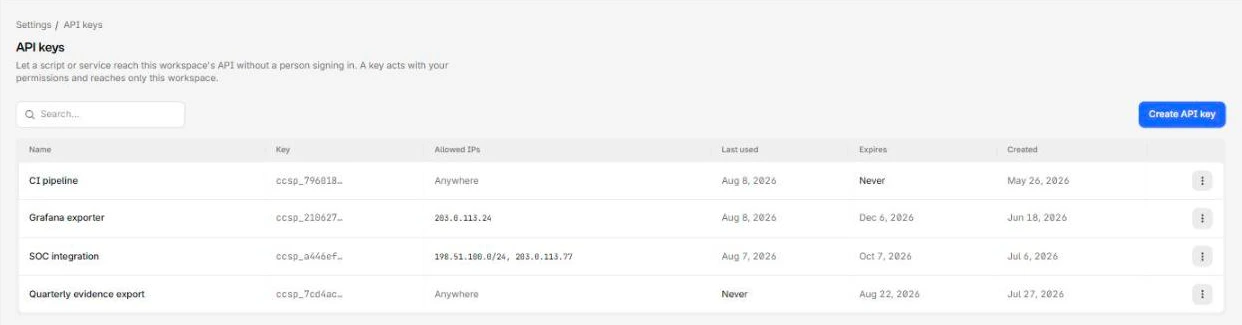
The keys table masks every key value:
Key scope
This is the thing to understand before creating one.
A key acts as the person who created it, with that person's current roles, and reaches only the workspace it was created in. There is no way to give a key narrower permissions than its creator has.
Two consequences:
- A key created by a workspace Admin can reach every website, because Admins do.
- If the creator's roles change, the key's reach changes with them.
To limit what a key can do, create it from an account that only has the access the integration needs. That usually means a workspace Member with grants on specific websites, not an Admin.
Key immutability
Expiry and allowed IPs are set at creation only. Changing either means revoking the key and issuing a new one.
Decide both up front. An unrestricted, never-expiring key is the default if you accept every default, and it is the one you will regret.
Revoke
- Find the key in the table.
- In its row menu, select Revoke.
Requests using the key are rejected from the next call. There is no undo and no restore.
Revoke when an integration is decommissioned, when the creating account leaves, or when a key has never been used and nobody knows what it was for. The Last used column reading Never on an old key is a good enough reason.
Review keys
The table shows the key prefix, allowed IPs, last used, expiry, and creation date.
Worth checking periodically: keys whose creator has left the workspace, keys with no IP restriction and no expiry, and keys never used. Creation and revocation are both recorded in the audit log.
Keys and two-factor enforcement
If the workspace requires two-factor, a key created by someone who has not enrolled stops working. Enrolment fixes it. For more information, refer to Two-factor enforcement.