

AI tools and MCP
Connect an AI tool to CentralCSP over the Model Context Protocol, signed in as you. What it can read, what it can change, and what it can never do.
Last update:
The MCP server lets an AI tool read your CentralCSP data and make some changes, acting as you.
The MCP server is configured under Settings > AI tools, on a plan that includes it.
MCP server permissions
The boundaries are enforced server-side, not left to the tool.
It reads:
- Workspaces, members, and the audit trail
- Websites, their endpoint, and their settings
- Browser reports, breakdowns, and policies
- The PCI DSS script inventory
- Alert channels, rules, and deliveries
It changes, when you ask it to:
- Create websites and change their settings
- Create and rename workspaces
- Justify scripts and manage payment pages, rules, and tags
- Create and update alert channels and rules
- Set usage limits and usage-alert recipients
It never:
- Deletes anything
- Invites or removes a member, or changes their role
- Changes website access
- Changes security settings or creates API keys
- Sees or changes billing
It acts as you
The AI tool holds your permissions, not a reduced set. If you are a workspace Admin, it can reach every website. There is no way to give a tool narrower access than your own.
Connect a client
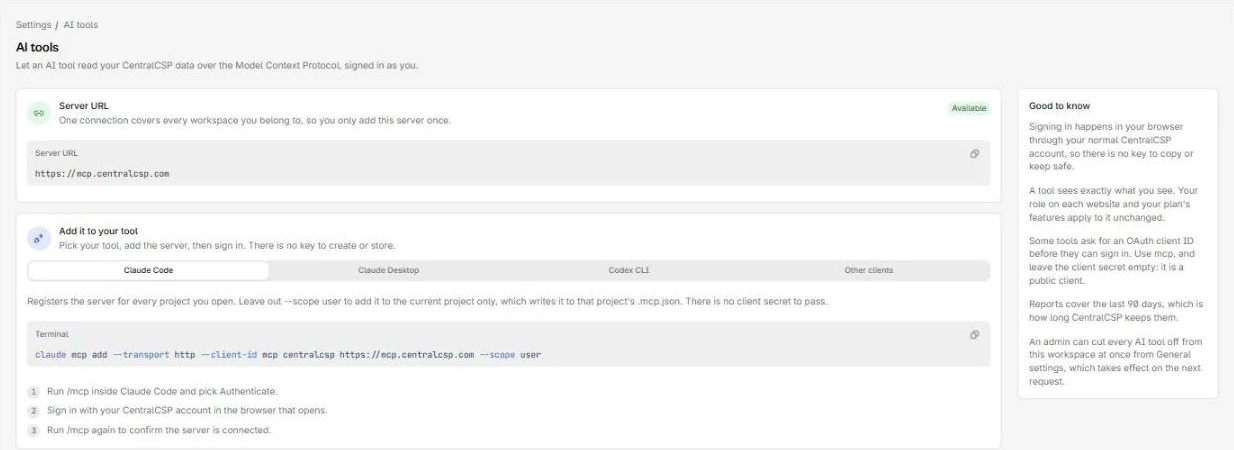
Connect a client in three steps:
- Go to Settings > AI tools.
- Select the tab for your client. Claude Code, Claude Desktop, Codex CLI, and a generic
mcp.jsonare covered. - Copy the generated command or configuration and run it against your client.
Each tab fills in the server URL for you, so there is nothing to assemble by hand.
Authentication is OAuth against your own account. There is no secret to paste and no key to store, which is also why revoking access means signing out of the client rather than deleting a credential here.
The AI tools page generates the command for each supported client:
The kill switch
Settings > General > Disable AI agent integrations stops every AI tool reaching the workspace. Existing MCP sessions are refused from the next request and no new one can be created.
Keys are kept rather than deleted, so turning it back on restores access without reconnecting.
Turning it on also hides the AI tools page, which is worth knowing if the page disappears and you are wondering why.
Use it as an incident control, or as a standing setting if AI access has not been approved in your organization.
When to turn on AI tool access
Reasonable uses are investigation and drafting: asking what changed on a site this week, summarizing which origins appeared, drafting justification text against real inventory data.
Two things to weigh. Everything the tool reads leaves CentralCSP and goes to the model provider, including report URLs and script inventory. And because it holds your permissions, an Admin connecting a tool is granting it workspace-wide read access.
If that is not appropriate for your data, leave the kill switch on. It is the only control here. There is no per-tool permission model.