

Members
Invite people, change their workspace role, and remove them. Only the owner can grant Admin, and the member cap counts pending invitations.
Last update:
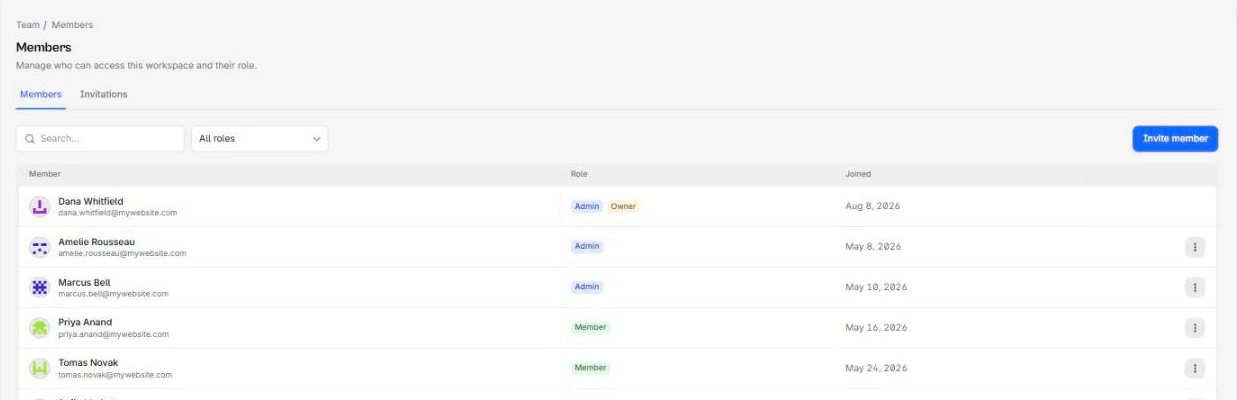
Team > Members manages who belongs to the workspace and what workspace role they hold. Two tabs: Members and Invitations, the second visible to Admins only.
Invite someone
Select Invite member, then enter an email address and choose a role.
Roles are Admin and Member. Only the Owner can invite an Admin. An Admin sees only Member in the list.
The invitation goes out by email and expires after 7 days.
Inviting someone does not give them access to any website. Workspace Members start with nothing, and you grant sites separately. For more information, refer to Website access. The exception is Admins, who reach every website automatically.
The members list shows every member and their workspace role:
The member cap
Your plan caps how many members a workspace can hold, and pending invitations count toward it.
If inviting is refused because the member limit is reached, revoke stale invitations before assuming you need a larger plan. An expired invitation still occupies a slot until revoked.
Without an active subscription, inviting is blocked until you choose a plan.
Manage invitations
The Invitations tab lists every invitation with a derived status:
| Status | Meaning |
|---|---|
| Pending | Sent, not yet accepted, not yet expired |
| Accepted | Used, and the person is now a member |
| Expired | Past 7 days without being accepted |
There is no resend
Nothing re-sends an invitation. To give someone another chance, revoke the existing invitation and create a new one. That also frees the slot it was holding against your member cap.
Revoke invalidates the link immediately.
Change a role
Changing a role is available from the row menu, and only to the Owner. Admins cannot change anyone's role, including promoting a Member.
The Owner cannot change their own role. To step down, use Transfer ownership under Settings > General, which promotes the new owner and leaves you an Admin.
Remove a member
Remove a member from the row menu. Access ends immediately, and their website grants go with them.
Who can remove whom:
- The Owner can remove anyone except themselves.
- An Admin can remove Members and themselves, but not other Admins.
- Nobody can remove the Owner.
Two things to check before removing someone: whether they are a usage alert recipient anywhere, and whether any email alert channel lists their address. Both drop silently, and the first you hear of it is an alert that never arrived. For more information, refer to Usage alerts.
Also check whether they created any API keys. Keys act as their creator, so removing the person is the moment to audit what is still running as them. For more information, refer to API keys.