

Website access
Grant people and groups a role on one website. Where to do it, how the two paths combine, and why revoking often needs both.
Last update:
Website access is granted per site, not from the Team section. Open the website, then Settings > Access control.
You need the website Admin role to change access.
Two tables, two paths
People grants one member a role directly. Groups grants a group a role, and every member inherits it.
Both use the same four website roles: Viewer, Analyst, Manager, Admin. For more information, refer to Roles and permissions.
Only existing workspace members appear in the pickers. Invite someone to the workspace first. For more information, refer to Members.
A website keeps people and groups in separate tables:
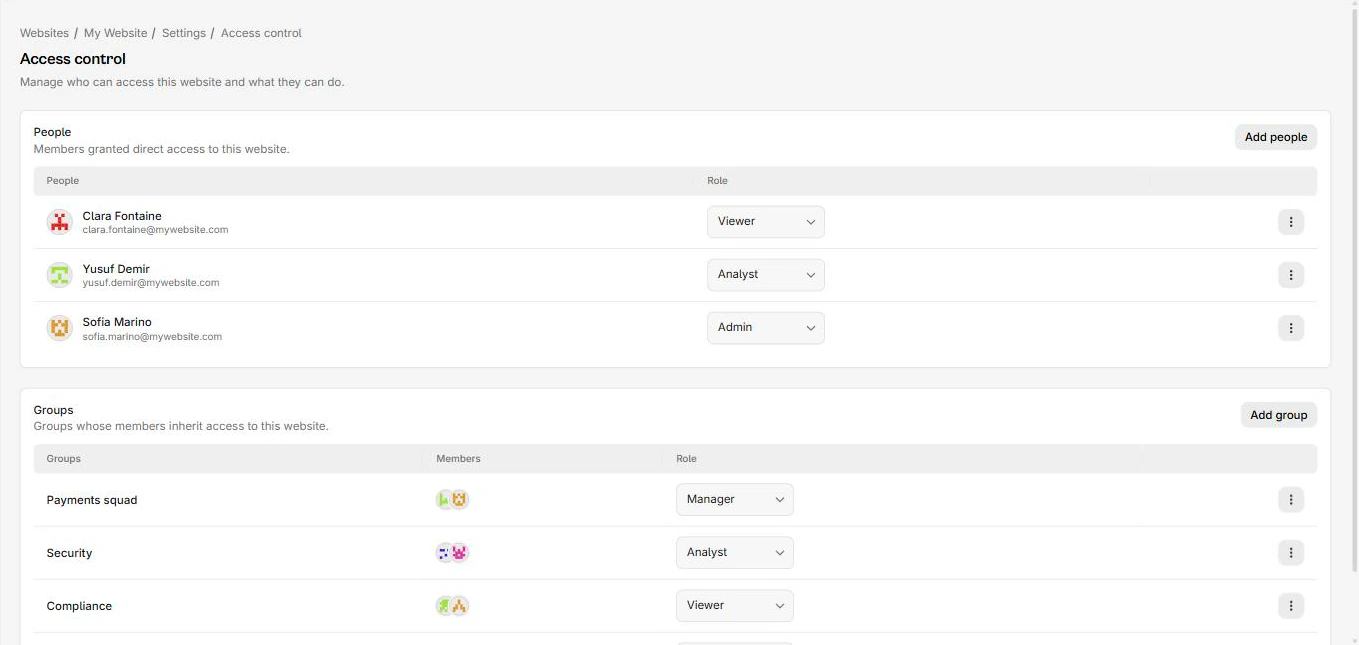
Groups versus direct grants
Direct grants are for exceptions: a contractor on one site, someone covering a handover. Everything routine should go through a group, so onboarding is one action and access is auditable in one place.
Workspace admin access
Workspace Owners and Admins hold website Admin on every site automatically. They do not appear as grants and adding them explicitly changes nothing.
To restrict someone to specific sites, they must be a workspace Member. There is no way to reduce an Admin's reach.
Revoke access
Check both tables. Someone with a direct Viewer grant who also belongs to a group with Manager is a Manager. Removing the direct grant leaves them a Manager, with no visible explanation on the People row.
The reliable sequence:
- Remove the direct grant in People.
- Check every group in Groups for their membership.
- Confirm they are not a workspace Admin, which overrides both.
Removing someone from the workspace entirely removes all their grants at once, which is the cleanest revocation when they are leaving.
Side effects worth checking
Two things quietly depend on website access:
- Email alert channels resolve to workspace members. Someone who loses access to the site is dropped from the recipient list, and if nobody is left the channel delivers to nobody.
- Usage alert recipients behave the same way.
Neither warns you. For more information, refer to Channels.
Access grants and revocations, for both people and groups, are recorded in the audit log.