

Access control
Grant people and groups access to one website with four roles. Viewer reads, Analyst decides on scripts, Manager configures, Admin manages access.
Last update:
Website access decides who can reach one particular site and what they can do there. It is separate from workspace roles, which decide who administers the account.
Find it under the website's Settings > Access control. You need the website Admin role to change it.
The four roles
Each role includes the permissions of the roles before it.
| Role | Adds |
|---|---|
| Viewer | Read reports, settings, script inventory, and alerts |
| Analyst | Decide on scripts under review, justify or reject |
| Manager | Change the website's configuration, ingestion, alerts, tags, and rules |
| Admin | Manage access to the site and delete it |
The split between Viewer and Analyst is the one that matters most in practice. PCI DSS script review is an approval decision with an audit trail attached, so Analyst is the lowest role that can justify or reject a script. Give it to the people who own that judgement and leave everyone else on Viewer.
The split between Manager and Admin separates configuring a site from controlling who else can reach it.
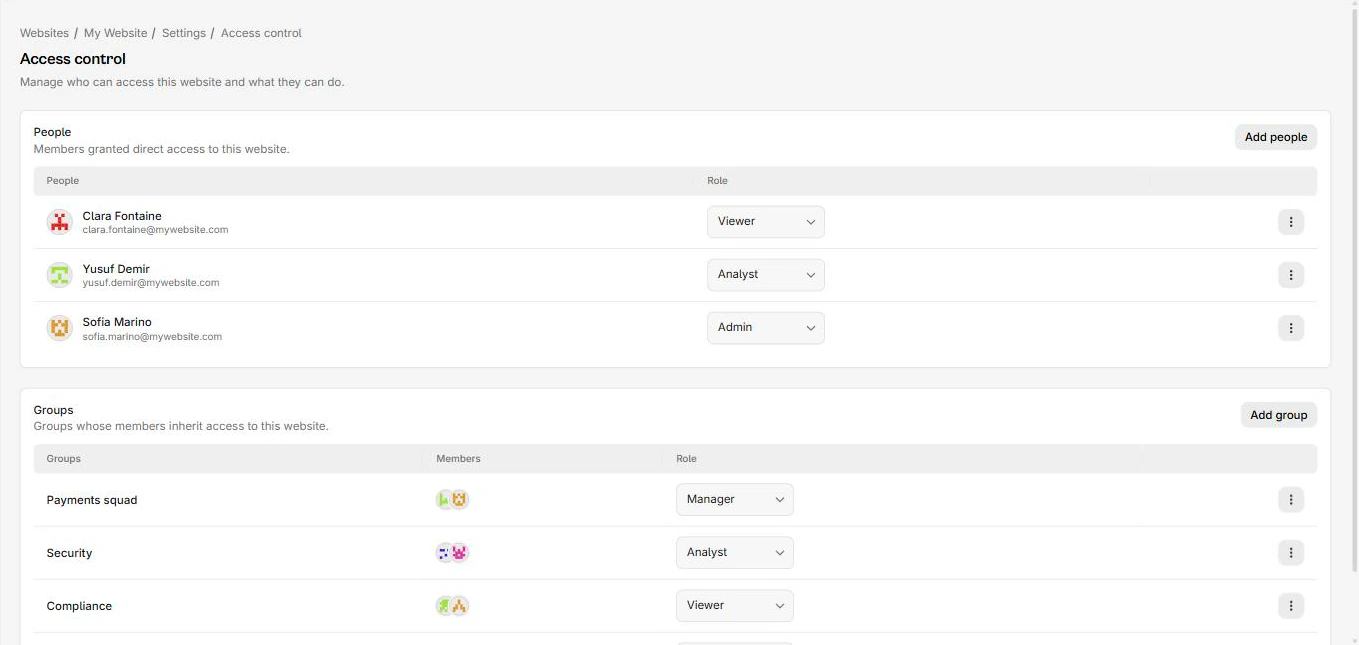
The access control page keeps people and groups in separate tables:
Grant access to a person
Under People, select Add people, choose a workspace member, and pick a role. Change someone's role later from the dropdown on their row.
Only existing workspace members appear in the picker. To bring in someone new, invite them to the workspace first under Team, then grant them the site.
Grant access to a group
Under Groups, select Add group and pick a role. Every member of that group inherits the role on this website.
Groups are the better default once you have more than a handful of people. Granting Security the Analyst role on every payment-facing site, then managing membership in one place, beats maintaining per-person grants across a dozen websites. For more information, refer to Groups.
How the two systems interact
Two rules, and they cover every case.
Workspace owners and admins already have full access to every website. They are website Admin everywhere, automatically. You cannot grant them less by leaving them off the list, and adding them explicitly changes nothing. If you need someone restricted to certain sites, they must be a workspace Member, not an admin.
Everyone else gets the highest role they hold. If someone has a direct Viewer grant and belongs to a group with Manager, they are a Manager. Removing one path does not remove the other, so when you are revoking access, check both the People and Groups lists.
Revoke access
Use the row menu to remove a person or a group. Removing a group removes it for every member who was inheriting through it, which is exactly the point, and worth confirming before you do it on a large group.
Removing someone from the workspace entirely removes all their website grants along with them.
Next steps
Usage and limits
Track how many reports a website ingests, cap it so one site cannot drain the workspace quota, and choose who gets warned as the limit approaches.
General settings
Rename a website, change its URL, clear its stored reports, or delete it. The last two are permanent and cannot be undone.