

Connect your site
Copy the headers CentralCSP generates for your website, deploy them, and verify the first report arrives. Three methods, one recommended.
Last update:
The Setup page holds everything you need to start collecting: the endpoint URL for this website, a generated header block matching your plan, and a check that confirms reports are arriving.
You need the website Manager role or higher to claim a subdomain. Copying and deploying headers needs nothing beyond read access, since the work happens on your own infrastructure.
Copy the headers
Copy the generated block:
- Open the website and go to Setup.
- Under Configure your application, pick the method that matches your stack. Use Reporting-Endpoints unless you have a specific reason not to.
- Select Copy headers.
The generated block only contains policies your plan can actually ingest, so it is shorter on some plans than others. Deploy it as-is and every granted report type starts arriving without enforcing anything.
Two headers do the essential work. The first declares where reports go:
Reporting-Endpoints: default="https://<ENDPOINT_ID>.report.centralcsp.com"The second is the policy that starts producing them:
Content-Security-Policy-Report-Only:
  default-src 'self';
  script-src 'self' 'report-sha256';
  report-uri https://<ENDPOINT_ID>.report.centralcsp.com;
  report-to default
Use your own endpoint URL
<ENDPOINT_ID> is a placeholder. Your endpoint URL is unique to this website, so copy it from your Setup page rather than typing it from here.
Keep report-sha256 in script-src
The 'report-sha256' source is what makes browsers report a hash of every script they load. That stream is what the script inventory and your PCI DSS script review are built from. Remove it and compliance monitoring has nothing to work with.
The Setup page offers the three delivery methods as tabs:
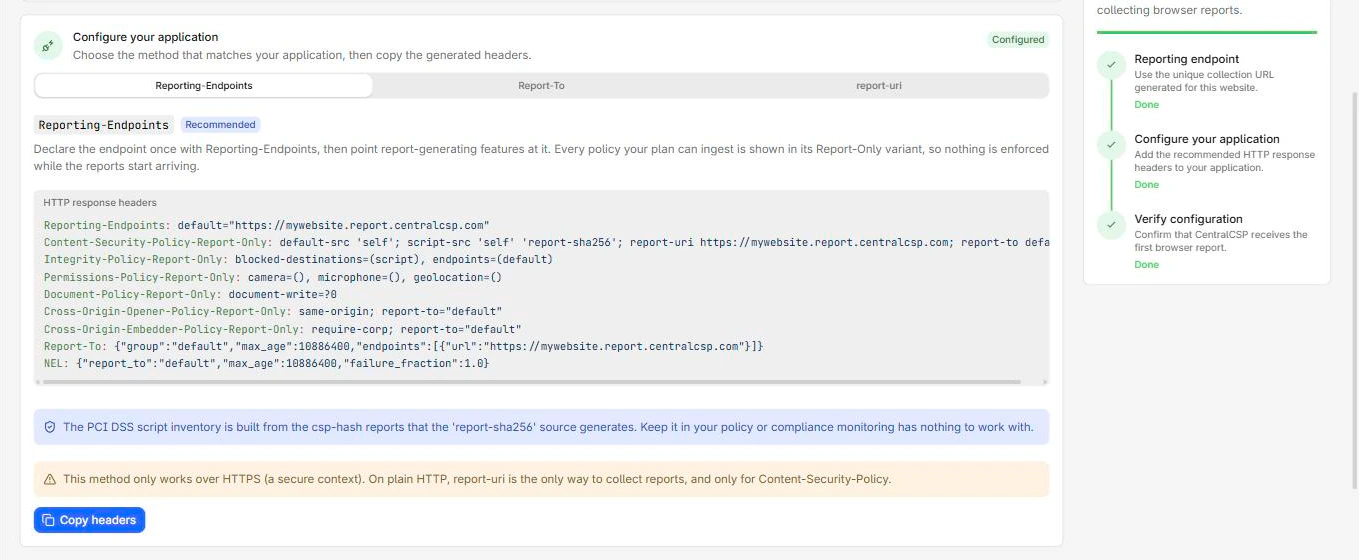
What else is in the block
Each remaining line is one policy in its reporting variant, all pointing at the same default group. You can deploy them all at once or add them as you go, since each is independent.
| Header | Starts collecting |
|---|---|
Integrity-Policy-Report-Only | Scripts loading without integrity metadata |
Permissions-Policy-Report-Only | Camera, microphone, and geolocation use |
Document-Policy-Report-Only | Calls to document.write |
Cross-Origin-Opener-Policy-Report-Only | Window and popup interactions |
Cross-Origin-Embedder-Policy-Report-Only | Cross-origin resources that did not opt in |
Report-To and NEL | Failed requests to your site |
Two details in there surprise people. Report-To appears even in the Reporting-Endpoints block, because Network Error Logging predates the newer header and only understands the old one. And the CSP line carries both report-uri and report-to, because report-uri is deprecated but still the only mechanism some browsers honour. Any browser that understands report-to ignores it, so keeping both costs nothing.
Report-To
The previous version of the Reporting API, superseded by Reporting-Endpoints but still honoured by some browsers. The same Report-Only policies apply, declared against a Report-To group instead:
Report-To: {"group":"default","max_age":10886400,"endpoints":[{"url":"https://<ENDPOINT_ID>.report.centralcsp.com"}]}Use this only if you have a specific reason to target browsers that never shipped Reporting-Endpoints.
report-uri
A Content Security Policy only fallback for browsers with no Reporting API support. The report-uri directive posts violations straight to the endpoint:
Content-Security-Policy: default-src 'self'; report-uri https://<ENDPOINT_ID>.report.centralcsp.comreport-uri collects CSP violations only
This method delivers nothing but CSP violation reports. The script inventory, PCI DSS compliance, and every other report type need the Reporting-Endpoints or Report-To setup.
Deploy the headers
Deploy the block:
- Add the headers to every HTML response your site returns, at your web server, CDN, or framework.
- Confirm they are on the document response. Putting them only on assets collects nothing.
- Redeploy.
add_header Reporting-Endpoints 'default="https://<ENDPOINT_ID>.report.centralcsp.com"' always;
add_header Content-Security-Policy-Report-Only "default-src 'self'; script-src 'self' 'report-sha256'; report-to default" always;
Your site must be served over HTTPS. The Reporting API delivers nothing from a plain HTTP page, and if part of your estate is still on HTTP, that is almost always the reason reports are missing.
Verify
Confirm reports are arriving:
- Open your site over HTTPS.
- Browse a page or two.
- Back on Setup, select Verify configuration.
Browsers batch reports rather than sending them immediately, so allow up to a minute before concluding anything is wrong.
If nothing arrives, work through this in order:
- The page is served over HTTPS.
- The headers are present on the HTML document response. Check the browser Network tab, not your config file.
- The endpoint URL matches the one on this page exactly.
- Under Settings > Ingestion, Allowed origins is empty or includes the origin you are testing from.
- Your workspace has not hit its monthly report limit, which stops ingestion everywhere until the reset.
For step 2 on an environment you cannot open devtools against, use the Reporting API configuration checker. It fetches any public URL and reports its Reporting-Endpoints, its Report-To, and which policies point at a named endpoint.
Next steps
Reports are now arriving for this website. Cut the noise with ingestion filters before the first batch piles up, and claim a custom subdomain if you would rather reports went to your own hostname.