

Usage and limits
Track how many reports a website ingests, cap it so one site cannot drain the workspace quota, and choose who gets warned as the limit approaches.
Last update:
Usage is counted per workspace as reports ingested in a calendar month, and it resets at the start of every month. Reaching your plan's limit stops ingestion across the whole workspace until the reset, not just on the site that caused it.
That workspace-wide consequence is why per-site limits exist. Find them under the website's Settings > Usage. You need the website Manager role or higher to change the limit.
What to watch
Three metrics tell you where a website stands:
| Metric | What it means |
|---|---|
| Reports used | Reports this website ingested in the current period, against its effective limit |
| Projected reports | Where this website lands by the end of the period at the current rate |
| Share of workspace usage | How much of the workspace total this one site accounts for |
Projected reports is the one that tells you to act. Reports used says where you are. Projection says whether you reach the reset. A site at 40% on the tenth of the month is fine, and the same site projecting 250% needs a cap today.
When the workspace quota is draining faster than expected, open each site and compare Share of workspace usage. The culprit is usually obvious in under a minute.
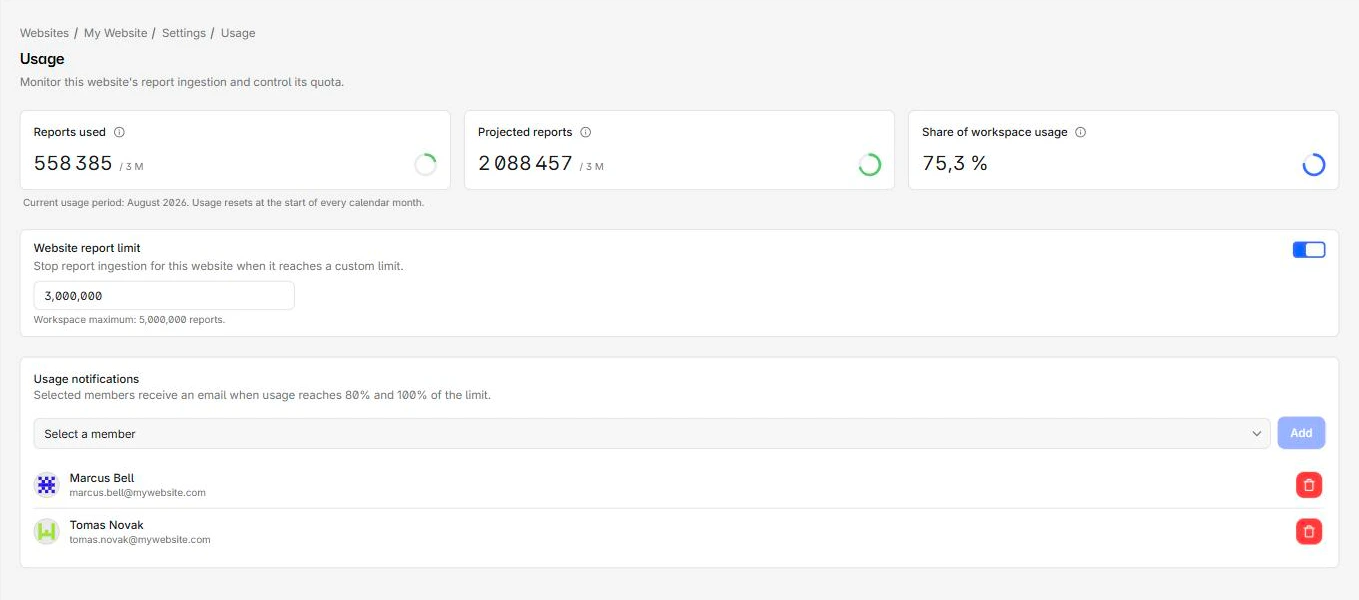
The website usage page shows all three metrics together:
Set a website report limit
Website report limit is off by default, meaning the site draws on the workspace quota with no ceiling of its own.
Turn it on and enter a number to cap this site. Once it reaches that number, ingestion stops for this website only and the rest of the workspace keeps collecting. Size the cap against the workspace maximum.
Worth capping:
- A staging or preview environment that should never outweigh production.
- A newly onboarded site whose volume you cannot predict yet.
- Anything with a permissive policy that has not been tuned, where one directive can fire on every page view.
Capping does not refund anything already ingested, and reports rejected by the cap are gone rather than queued.
Usage notifications
Selected members receive an email when usage reaches 80% and again at 100% of the limit.
Add recipients from the member picker. Anyone who should notice before collection stops belongs here, which usually means whoever owns the site rather than whoever owns the billing relationship. The two are often different people, and the 80% warning is only useful to someone in a position to act on it.
Removing a member from the workspace removes them from the recipient list automatically.
When ingestion stops
Reports posted after a limit is reached are rejected at the endpoint. Nothing is queued, so there is no backfill when the period rolls over or when you raise the limit. That window is simply missing from your data.
Two ways out, depending on which limit you hit. If it was a per-site cap, raise it or turn it off and collection resumes immediately. If it was the workspace quota, you either wait for the reset or move to a plan with a higher allowance. For more information, refer to Billing.
Either way, it is worth understanding what filled the quota before raising it. Extension noise and an untuned policy account for most surprise overages, and both are cheaper to fix than to pay for. For more information, refer to Ingestion filters.
Next steps
Ingestion filters
Control which origins may report to your endpoint and what gets stripped before storage. Restricting origins protects your quota.
Access control
Grant people and groups access to one website with four roles. Viewer reads, Analyst decides on scripts, Manager configures, Admin manages access.