Get started with Content Security Policy
CentralCSP Team ·
Last update:
A Content Security Policy (CSP) is an HTTP response header that tells the browser which scripts, styles, images, and other resources your page is allowed to load and run. You send one header, the browser reads it on every page load, and anything not on your list gets blocked. That blocking is what stops most cross-site scripting (XSS) and script-injection attacks.
This is the gentle introduction. By the end you will know what CSP is, how to deliver it, how to write a first simple policy, how to allow one inline script with a nonce, and how to test all of it without breaking your site. For the full production workflow and every framework, this post links out to the deeper guides rather than repeating them.
What CSP is, in one minute
Think of a policy as a guest list the browser checks before it runs anything. You hand the browser the list as a response header. When the page loads a script or a stylesheet, the browser checks the list. On the list, it runs. Not on the list, it refuses and (if you ask) reports it.
Why this matters: most XSS attacks work by getting your page to run a script the attacker injected. A good CSP says "only run scripts I explicitly allowed", so the injected script is not on the list and never runs. It is a second line of defense behind input validation, the layer that contains the damage when something slips through.
How you deliver a CSP
You deliver a CSP as the Content-Security-Policy HTTP response header, set on every response your server sends. That is the recommended way and the one this guide uses throughout.
There is a second option, a <meta http-equiv="Content-Security-Policy" content="..."> tag in your HTML. It works for simple cases but it is limited:
- It cannot use
frame-ancestors,sandbox, or the reporting directives (report-uriandreport-to). - It cannot deliver a Report-Only policy at all.
- It does not protect anything that loads before the tag, so a script injected near the top of the page is unprotected.
Because of those gaps, prefer the HTTP header. The rest of this post assumes the header.
Your first policy, in Report-Only
Always start a CSP in Report-Only. On the Content-Security-Policy-Report-Only header the browser blocks nothing and only reports what the policy would have blocked, so you can roll out a strict policy on live traffic without risking a broken page. You switch to the enforcing header later, once the reports are quiet.
Here is a complete CSP example to start from. Every resource type is set to your own origin ('self') or off ('none'), and the policy sends its violation reports to a CentralCSP endpoint:
Reporting-Endpoints: csp-endpoint="https://<Endpoint-ID>.report.centralcsp.com"Content-Security-Policy-Report-Only:
default-src 'self';
script-src 'self';
style-src 'self';
img-src 'self';
font-src 'self';
connect-src 'self';
frame-src 'self';
form-action 'self';
object-src 'none';
base-uri 'none';
frame-ancestors 'none';
report-uri https://<Endpoint-ID>.report.centralcsp.com;
report-to csp-endpointWhat each part does:
default-src 'self'is the fallback for anything you do not name. The'self'lines (script-src,style-src,img-src,font-src,connect-src,frame-src,form-action) keep each resource type to your own origin.- The
'none'lines turn off what most sites never need:object-src 'none'blocks legacy plugins like<object>and<embed>,base-uri 'none'blocks an injected<base>tag from rewriting your relative URLs, andframe-ancestors 'none'stops your page being framed, which is clickjacking protection. report-uriandreport-tosend every violation to your CentralCSP endpoint, named in theReporting-Endpointsheader. That is where you watch what the policy would block. They are two different mechanisms; see report-uri vs report-to for which to use, and how to set up the browser Reporting API for wiring the endpoint.
Replace <Endpoint-ID> with your own CentralCSP reporting endpoint. As the reports arrive, you loosen the lines that are too tight (a CDN your img-src needs, an analytics host for connect-src) and keep the rest locked down, until the policy fits your site. For a common real example, see how to run Google Analytics and Tag Manager under a strict CSP.
Set the header on your server
A policy only protects users if the header reaches the browser. You set it wherever your stack adds response headers, using the full Report-Only policy from above as the value. Here are two common examples; the full per-framework setup covers Apache, Traefik, Django, Next.js, Nuxt, Laravel, and Angular.
Nginx
Use nginx's add_header with always so the header is sent on error responses too:
add_header Content-Security-Policy "default-src 'self'" always;Express (Helmet)
In Express, Helmet sets the header for you from a directives object:
app.use(
  helmet({
    contentSecurityPolicy: {
      directives: { "default-src": ["'self'"] },
    },
  })
);
Your first nonce
Sooner or later you will have an inline script you cannot move into a file, for example a small block of server-rendered config. A strict policy blocks inline scripts by default, which is exactly what you want for security. A nonce is how you allow one specific inline script through without opening the door to all of them.
A nonce is a fresh random value your server generates on every response. You put it in the header and repeat it on the inline script. The browser runs only the inline scripts whose nonce attribute matches the value in the header. An attacker who injects a script cannot guess the value, so the injected script stays blocked.
Generate it from a cryptographically secure random source, 16 bytes (128 bits) is the common recommendation, base64-encoded. Never use Math.random(); it is predictable. In Node:
const crypto = require("crypto");
const nonce = crypto.randomBytes(16).toString("base64");
Then put that nonce in the policy and on the script:
Content-Security-Policy: script-src 'nonce-r4nd0mBase64Value'; object-src 'none'; base-uri 'none'<script nonce="r4nd0mBase64Value"> <!-- [!code word:r4nd0mBase64Value] -->
// your trusted inline script
</script>Two rules keep a nonce safe. It must be unique per response, so generate a new one every time, never reuse one across requests. And it must come from a secure random source, never Math.random().
Prefer nonces (or hashes) over the 'unsafe-inline' keyword. Adding 'unsafe-inline' to a script directive re-enables every inline script, which throws away the protection you set up CSP to get. The full reasoning is in why you should never use unsafe-inline in CSP.
Generating a fresh nonce per request and threading it into your templates is framework-specific. How to set up a nonce covers the common stacks, and if you are on Next.js, how to set up a CSP nonce in Next.js walks through the App Router setup end to end.
From Report-Only to enforcing
You started in Report-Only, so nothing has been blocked yet. The browser has only been reporting what your policy would block. Read those reports, allow the origins your site genuinely needs, remove the rest, and watch the violations drop.
When the reports are quiet, meaning the only entries left are noise or attempts you are happy to block, promote the policy. Move the same directives from the Content-Security-Policy-Report-Only header to the enforcing Content-Security-Policy header. Nothing else changes, only the header name.
Reporting does not stop when you enforce. An enforcing policy still sends a report for everything it blocks, so you keep the same visibility and catch anything new that breaks, or any tampering, on your pages.
Debug violations in Chrome DevTools
When something gets blocked, the browser tells you. Open Chrome DevTools and you will see CSP violations in two places (for the full walkthrough, see debug CSP violations in DevTools):
- The Console shows a "Refused to load..." style message naming the resource and the directive that blocked it.
- The Issues panel breaks the violation down: the violated directive, the blocked resource, the source location, and a link to the element that caused it.
Open the Issues panel from the Issues button in the DevTools action bar, or from More tools > Issues. The Issues panel is usually the faster read because it groups violations and links straight to the offending element.
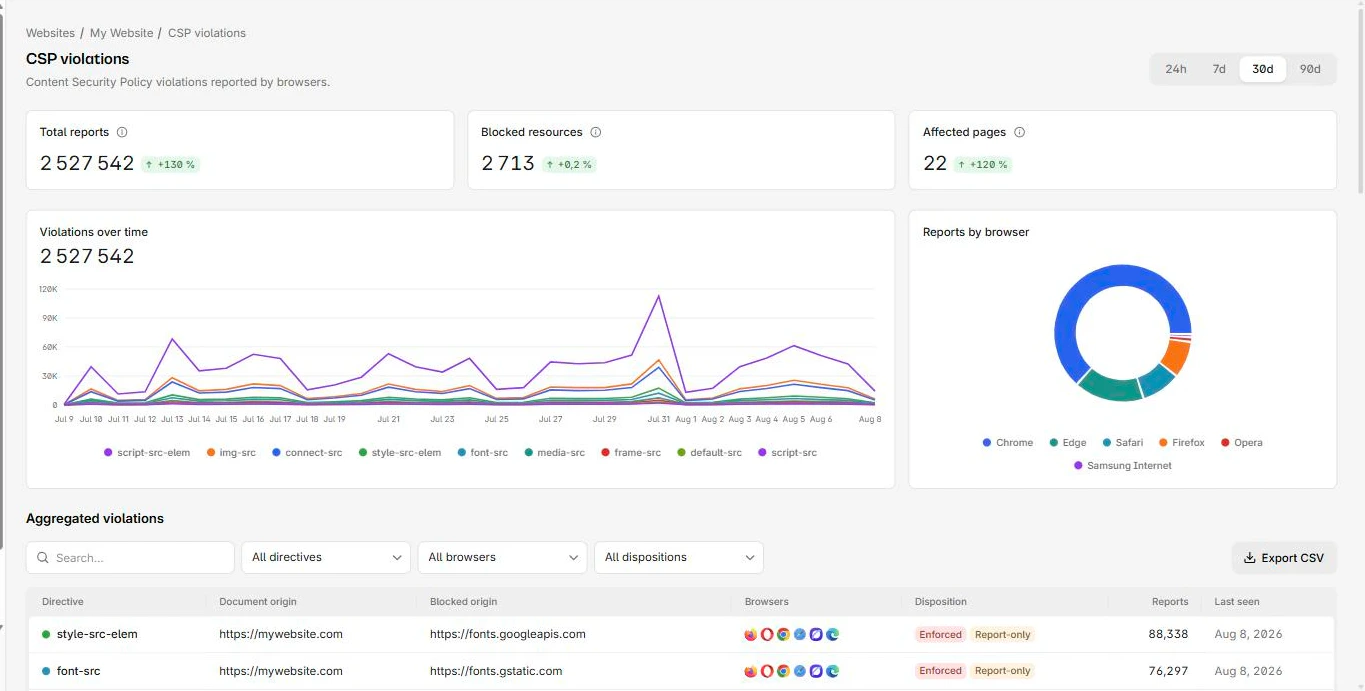
This is great for spot-checking one page on your own machine, and the CentralCSP browser extension gives you the same per-page view as you browse. Neither shows you what real users across all your pages and third parties are hitting. For that, you collect the Report-Only reports from live traffic, which is the next step.
Where to go next
You now have the basics: a header, a first policy, a nonce, and a safe way to test. The leap from here to a production-grade CSP is collecting violations from real traffic, building the policy from that evidence, validating it, enforcing it, and monitoring it over time. That full workflow is in how to build a strong CSP, step by step.
A few CentralCSP tools and features help along the way:
- The CSP scanner checks what header a live site already sends.
- The CSP evaluator scores a policy and flags weak sources or missing directives.
- The CentralCSP CSP suite collects your Report-Only reports from real traffic, groups them, and shows the scripts running on each page, so you can see exactly what to allow before you enforce.
When you are ready to watch reports come in, start a free trial and point a Report-Only header at it.
Frequently asked questions
How do I get started with CSP?
Start on the Content-Security-Policy-Report-Only header with a policy that sets each resource type to 'self' or 'none' and points reports at a collector. Fix what the reports show, then move the same policy to the enforcing Content-Security-Policy header.
What is the simplest CSP to start with?
A policy that sets each resource type to 'self' or 'none', shipped on the Content-Security-Policy-Report-Only header with reports pointed at your CentralCSP endpoint. Start there so nothing breaks, then tune it from the reports. The starter policy above is a good template, and there is a fuller CSP starter template to copy from.
How do I add a CSP without breaking my site?
Ship it first on the Content-Security-Policy-Report-Only header. The browser blocks nothing and only reports what it would have blocked, so you can fix every issue before switching to the enforcing header.
How do I allow an inline script under CSP?
Give it a nonce. Generate a fresh random value per response, put it in script-src as 'nonce-...', and repeat it in the nonce attribute on the script. Avoid 'unsafe-inline', which allows every inline script.
Should I use a meta tag or an HTTP header for CSP?
Use the HTTP header. A meta tag cannot use frame-ancestors, cannot deliver Report-Only, and does not protect content that loads before the tag. See CSP meta tag vs HTTP header for the full comparison.
Further reading: the MDN guide to CSP and the W3C CSP Level 3 specification.