

Get started
Go from nothing to a reviewed script inventory. Confirm hash reporting, define scope, automate the obvious, then review what is left.
Last update:
This page is the shortest path to a script inventory you could show an assessor.
Prerequisites
Before you start, make sure you have:
- A plan that includes compliance.
- Website role Manager to define scope and rules, Analyst to review scripts.
'report-sha256'present in yourscript-src. Without it there are no hash reports and the inventory stays empty. Check CSP hashes shows data before going further.
1. Define payment-page scope
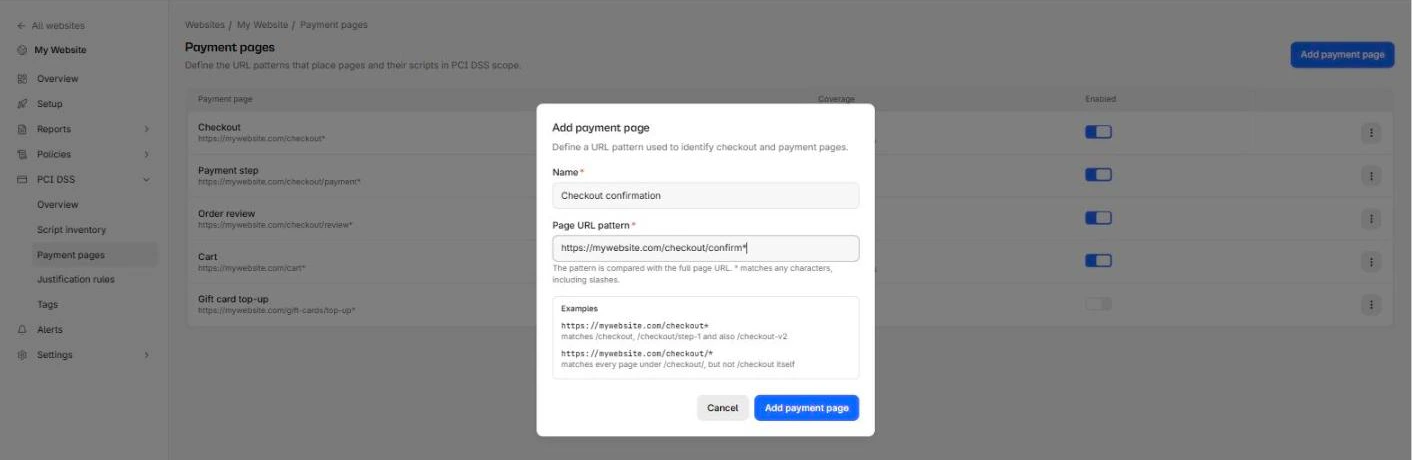
Go to PCI DSS > Payment pages and select Add payment page.
Give it a name and a URL pattern. * is the only wildcard, it matches any characters including slashes, and the pattern must match the whole URL.
https://shop.example.com/checkout*Add one pattern per distinct flow rather than one clever pattern for all of them. It keeps the coverage numbers readable and lets you turn a flow off without touching the others.
Scope is the gate for everything else. Only scripts observed on a matching page enter the inventory. For more information, refer to Payment pages.
A pattern goes in the Page URL pattern field:
2. Wait for the inventory to build
Reconciliation runs hourly, and creating a payment page enqueues it immediately, so the inventory usually populates within a few minutes.
If the inventory stays empty, the likely cause is that your patterns do not match the URLs browsers actually reported. Compare them against the document URLs on the CSP hashes page.
3. Automate the scripts you already trust
Before reviewing anything by hand, go to PCI DSS > Justification rules and add rules for the things you will approve anyway: your own origin, and payment providers you have already vetted.
https://js.stripe.com/*A rule needs a name, a pattern, and a justification. The justification text is what an assessor reads, so write the business reason rather than "trusted".
Rules apply retroactively. Creating one justifies matching scripts already in the inventory, not just future ones. For more information, refer to Justification rules.
4. Review what is left
Open PCI DSS > Script inventory and the Action required tab. This is the list that matters: scripts nobody has decided on, plus scripts whose hash changed since they were justified.
Select a script, then Justify or Mark rejected, and write the reason. Both require text.
Rejecting does not block anything
Marking a script rejected records your decision. It does not stop the script loading. Remove it from the page, or from your policy, as a separate action.
For more information, refer to Justifying scripts.
5. Export the evidence pack
From PCI DSS > Overview, select Export evidence pack. You get a ZIP with a PDF report and two complete CSVs.
Do this once early, before you need it, so you know what your assessor will be reading. For more information, refer to Evidence export.
Keep the inventory current
Review coverage will not stay at 100%. New scripts arrive as unreviewed, and a justified script whose hash changes moves to Needs review automatically.
Set an alert on the Unjustified script on payment pages event so you find out without checking. For more information, refer to Alert rules.
Next steps
You now have a reviewed script inventory and an evidence pack you could hand to an assessor. Keep it current by working the review queue whenever a hash changes.